
This feature allows admins to import all of their users via CSV in lieu of having an AD integration or using the TeamsID Google integration.
Let's Get Started
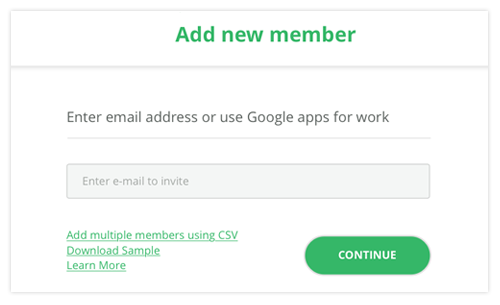
Click on the ADD MEMBER button on the lower left column of your TeamsID dashboard.

Once clicked, you'll be directed to the following screen.
Download and Open Sample CSV
Click the link Add multiple members using CSV.
Don't Touch Row 1
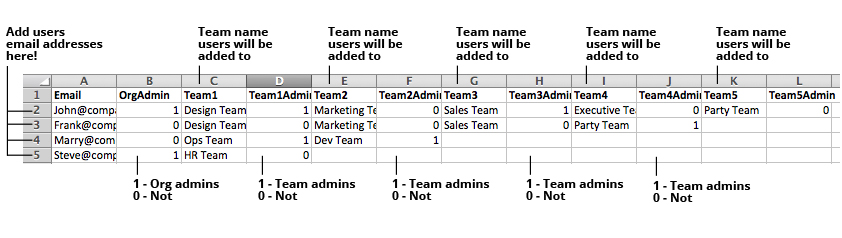
Clear contents from rows 2-5. Leave row 1 as is, don't change the labels.
Enter TeamsID User Data by Row
Column (A) - Add user email address.
Column (B) - 1 if they're an organizational admin or 0 if they are not an organizations admin.
Column (C,E,G,I) - Team name they'll be added to.
Column (D,F,H,J) - 1 if they're the team admin or 0 if they are not the team admin.
For security, you should delete the CSV file after import is successfully done.
You've Just Imported Your All Users!