
With TeamsID iOS app, you can organize your passwords and collaborate with your team from anywhere on your iOS smartphone or tablet. Get it from the App Store here.
Basics
The TeamsID iOS app is the best way to use TeamsID on an iOS device. With the app installed, you can create and organize TeamsID records and collaborate with your team using your iOS smartphone or tablet. The iOS app also supports offline functionality so you can use TeamsID even when your device is not connected to the Internet.
To install TeamsID:
- Download TeamsID from the App Store
- Tap the Install button.
- Tap on the installed TeamsID app from your apps screen
Note: You can sign in to TeamsID using the iOS app only after you have set up your TeamsID account.
Just like with the TeamsID web app, you can use the TeamsID iOS app to access your personal records, teams and shared records. You can search for any records from your iOS device. Your TeamsID data on the web and on TeamsID apps stays up to date and in sync automatically no matter what device you’re using.
Sign in
If you already have a TeamsID account, you can sign in on the iOS app exactly like you would on the web app.

When you first open the iOS app, you can choose to:
- Sign in with your Google account - If you have originally signed up for TeamsID with your Google account, use this option. This option also applies to business users for whom TeamsID is set up as a Google App. There is no password required if you choose this option as TeamsID will be using your Google account authentication.
- Sign in with your email and password - If you have originally signed up for TeamsID with your email and set up a password, then use this option.
- Sign in to TeamsID’s self-hosted version by entering your server’s host-name - If TeamsID has been set up on a self-hosted on-premises server, then use this option. You will be prompted to enter the host-name or IP address of the server that hosts TeamsID. You will then need to enter your TeamsID email and password to sign in to the server.
Records list
When you first log into your account, you will be shown ‘All Records’. This list comprises all your personal records and records that have been shared directly with you or with teams you are a member of.
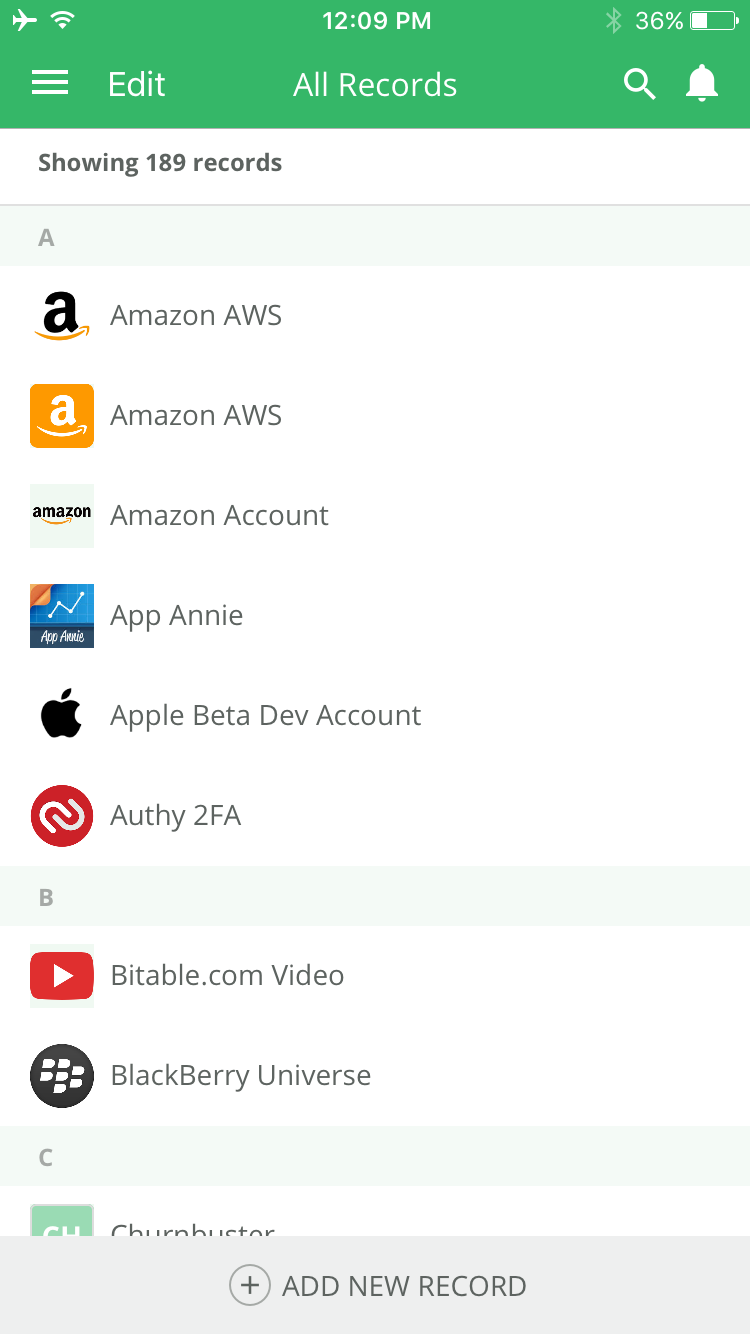
You have the following options on this screen:
- Slide out the menu that shows settings, filters and teams you have access to
- Search to find any record using its title, field, notes, tags, etc.
- Notifications list to show activity relevant to you.
- Add a personal or shared record using the (+) button.
- You can also put the list in multi-select mode by long-tapping on any record.
Filters & Teams

You have the following options on this screen:
- View records by filters - All records, My records, Shared records or My Favorites
- View records by team
- Invite member or Add Team is available only to the Account Admin
- Your settings
- Team settings are available only to the Account Admin
Adding and Editing records
On the TeamsID iOS app, you can add a personal or a shared record. You can also edit a record if you have permission.

You have the following options on this screen:
- Bottom bar actions: Add attachment, due date, mark favorite
- Fill in the details of the record
- Templates allow you to pre-populate the field labels
- You can edit the existing labels by tapping on them, and you can add new fields
- Decide if a field value should bemasked (noted with a hidden eye icon alongside the field)
- Generate a random password in a field
- Share the record with other users
- Share the record with other teams
If you do not share the record, it remains as your own personal record.
Viewing a record
On the TeamsID iOS app, you can add view details of your personal record or any shared record you have access to.
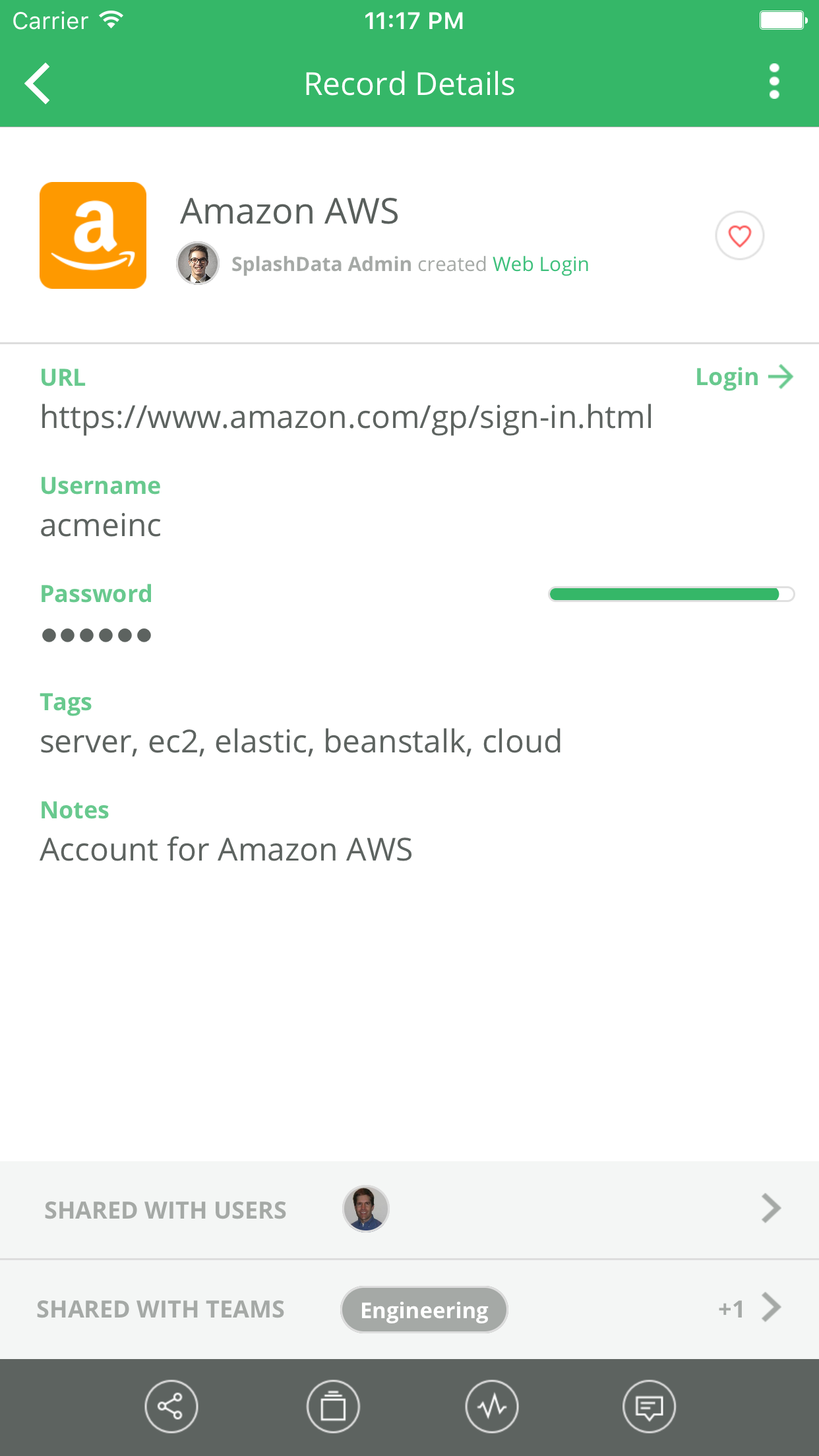
You have the following options on this screen:
- Bottom bar actions: One time share, duplicate, view activity, comments
- You can edit or delete the record if you have permission
- View all details of the record, including tags, attachments, notes, etc.
- Auto-login to a website if the record is a web login
- Mark record as a favorite
- Share the record with other users (if you have permission to share)
- Share the record with other teams (if you have permission to share)
If you do not share the record, it remains as your personal record.
Using TeamsID iOS app offline
You can use TeamsID for iOS offline in read-only mode to look up records. You will need to authenticate yourself to access your data in offline mode. If you are a Google user, you need an iOS device with Touch ID authentication to use the app in offline mode. Adding or editing is not available in offline mode.
Use our web and mobile apps together to get more done
To get the most out of TeamsID, use the web app while at your desk (available at https://app.teamsid.com) and the iOS app (or our other mobile apps) when on the go. The web and mobile apps are always up to date, so your records are always in sync no matter where you are using TeamsID.
Now that you’ve set up your TeamsID iOS app, you have access to all your TeamsID records anywhere, anytime!