
When an Account Admin invites a user to join the account, and the user accepts the invitation, then the user becomes a member on the account.

On-boarding members
Admins (Account Admin and Team Admin) can invite members to join them on TeamsID.
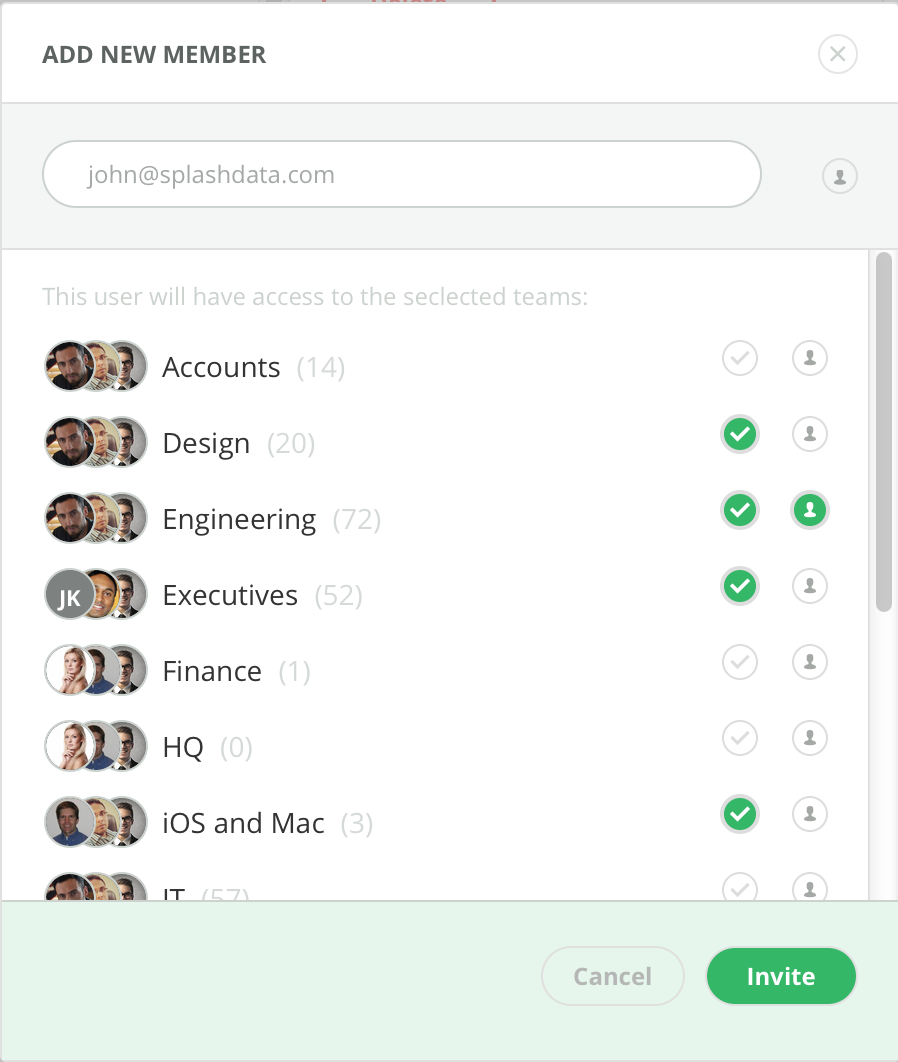
1. Account Admin can invite members to by sending them an invitation.
- On the left pane at the bottom, click on ‘Add Member’
- Enter email address of the member to be invited
- Select teams
- If you would like this member to be an Account Admin, then select the admin icon along the email address
- If you would like this member to be an Team Admin, then select the admin icon along the team selected
2. Similarly, a Team Admin can invite members to the team directly by sending them an invitation.
- To the right of the Team name, you can click on the ‘Team Settings’ gear.
- At the bottom, enter email address of the member to be invited
- If you would like this member to be an Team Admin, then select the admin icon alongside the email
- Hit 'Invite'. This would make this user a member of this team only. Once user is on board, other teams can be assigned by Account Admin or Team Admin.
When you invite a user to become a member of your account, there are three possibilities:
- If the user does not have a TeamsID account, then they can click on the invitation link, create an account and join you on the TeamsID account
- If the user already has a TeamsID account and is not part of any other account, they would click on the invitation link, login and join the Organization to become a member.
- If the user already has a TeamsID account and is part of another Organization, they must first leave their original account, then click on the invitation link, login and join your account to become a member.
Once the member signs in, the member would see the records and teams they have access to.