
An account is usually setup with one or more Account Admins managing the TeamsID account along with teams managed by Team Admins. An Account Admin can also be a Team Admin (but does not necessarily have to).
- Only Account Admins can access the Account Settings and make changes to account such as change plan, update billing information, view logs, etc.
- Team Admin have complete access to the team's Settings including access and edit permissions to all the records that are shared with the team. Team Admin can add/remove members of the team and also assign others as Team Admins.
- Member with basic access only can view records in the team or record that are directly shared with the member. To let a team member edit a record, the record has to be explicitly shared with the member.
Account Settings
If you are an Account Admin, just to the right of the account, you can click on the ‘Account Settings’ gear icon. This will give you access to:
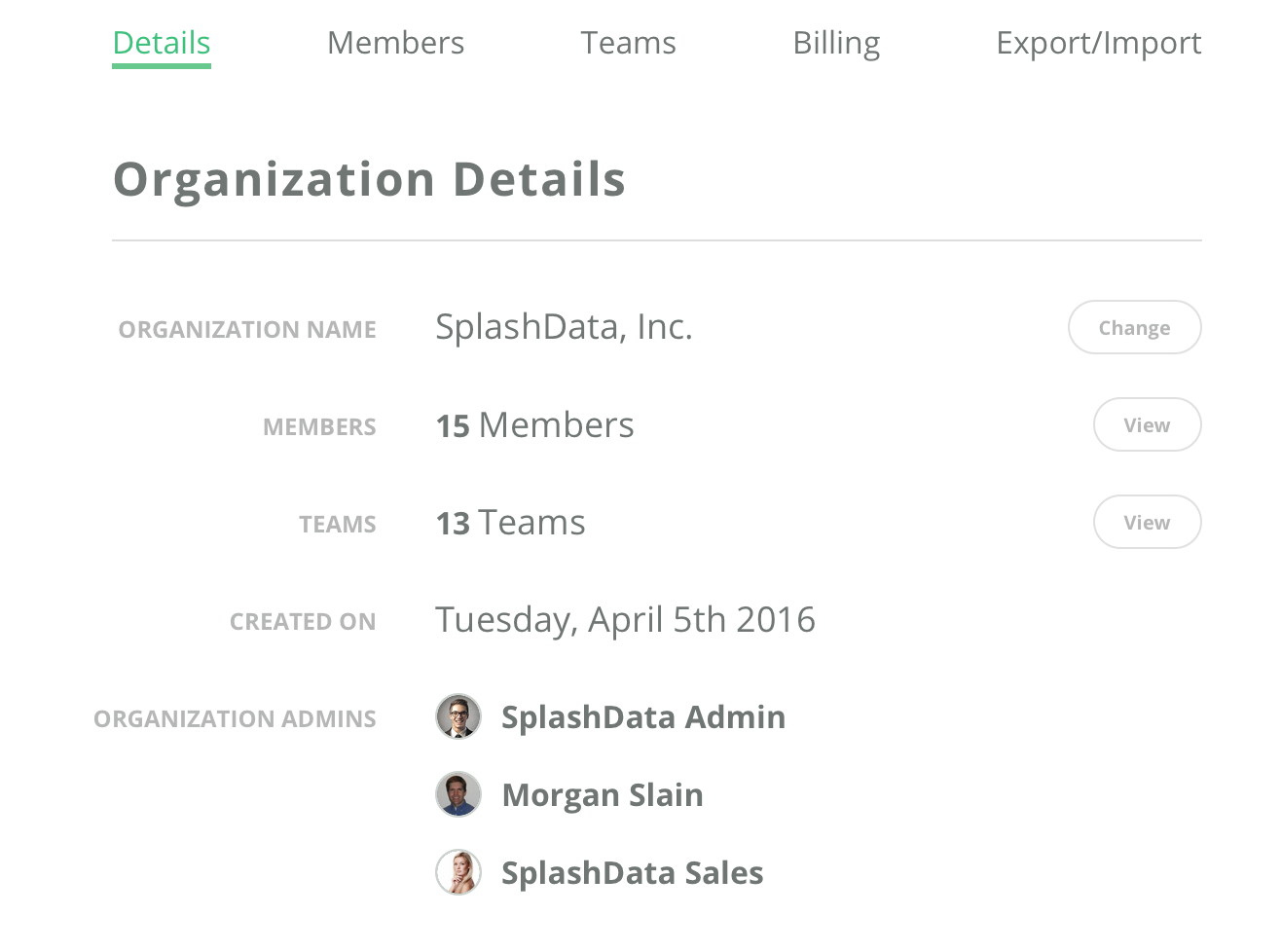
Details: Display the details of the account such as name, member count, teams, date created and list of Account Admins.
Members: Shows list of members on the account. It also let's you invite members to by entering their email ID and selecting the Team they would have access to after joining the account. After sending the invite, you will see a ‘Pending’ state. While in this state, you can ‘Resend’ an invitation or you can ‘Remove’ an invitation. You will see list of members that have access after they have accepted your invite and joined the account. When you hover over a user, you see the following options:
- Team Access – add / remove Teams to which the user has access
- Make Admin or Remove Admin – if a member is not an Organization Admin, by selecting ‘Make Admin’ you make this user an Account Admin. If a user is already an Organization Admin, by selecting ‘Remove Admin’ you remove this user’s authority as an Account Admin
- Reset password - Send an email to the member with password reset instructions
- Remove - Remove the member from your TeamsID account. This will remove all access from records and teams
Teams: Displays a list of Teams in the Organization along with the number of members and records in each Team. You can also go to the Team settings directly by clicking on the Settings gear icon alongside the Team.
Billing: View your TeamsID plan (change billing cycle, update billing info, view history, etc)
Export / Import: Export and Import your TeamsID data and export activity logs by member or team.